Setup

Quick Start

Short steps to install the TorgLink client and, if you want, a self-hosted ShortP2P server. Draft 0.1 builds — not a production release.

Client

Install client

Published 0.1 client packages: Windows installers and an Android package from the rolling ci-builds prerelease.

  1. Open the TorgLink Release 0.1 artifacts.
  2. Download the Windows installer or the Android ZIP that matches your platform.
  3. Run the Windows setup, or unpack the Android ZIP and install the APK.

Open TorgLink 0.1 artifacts

Direct downloads from the rolling ci-builds GitHub prerelease. No sign-in required. Replaced on each successful CI push to main or dev/**.

ci-builds prerelease on GitHub

Server

Install server

Optional store-and-forward server. You host it yourself on Windows or Linux. Messages stay encrypted and are deleted after the recipient receives them.

  1. Open the ShortP2P 0.1 artifacts on the GitHub Actions run.
  2. Download the Windows (win-x64) or Linux (amd64) ZIP. Downloading an Actions artifact requires a GitHub account.
  3. Unpack the archive on the host machine and run the server.

Open ShortP2P 0.1 artifacts

Windows (win-x64) and Linux (amd64) packages are artifacts of the 0.1 release run. Downloading the ZIP requires any GitHub account.

Unstable CI builds

In the app

Configure servers in the app

Once the client is running, add the Base URL of your ShortP2P server. The app stores the server certificate fingerprint.

The dark screenshots are from the MAUI client on Windows. Android uses the same MAUI UI — there is no separate Android layout in these shots.

Android

  1. Open Network.
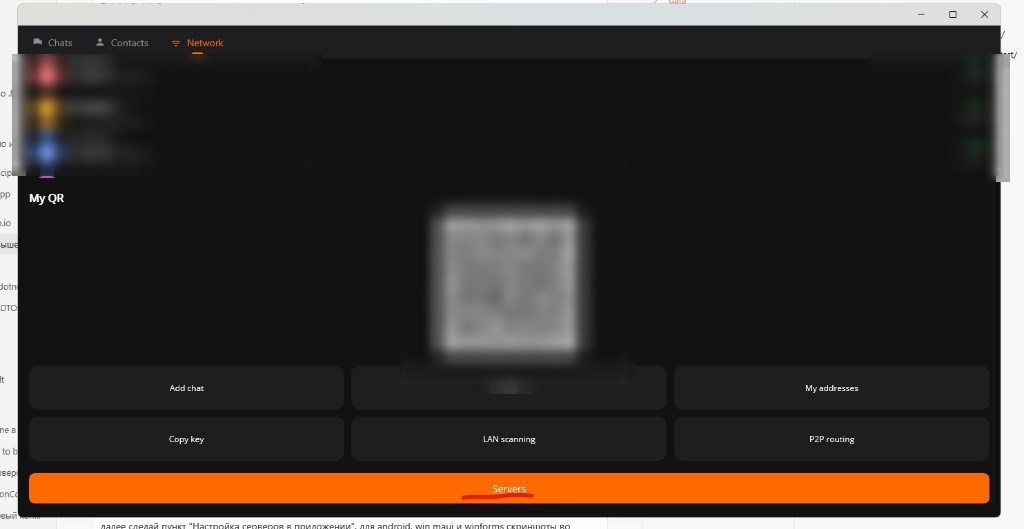
  2. Tap Servers.
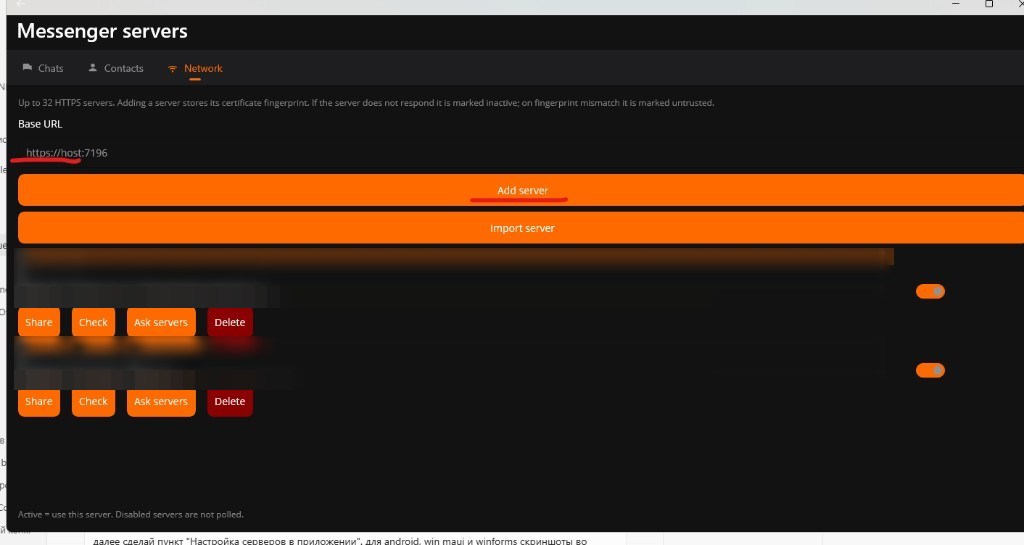
  3. Enter the Base URL (for example https://host:7196).
  4. Tap Add server. Import server is optional.
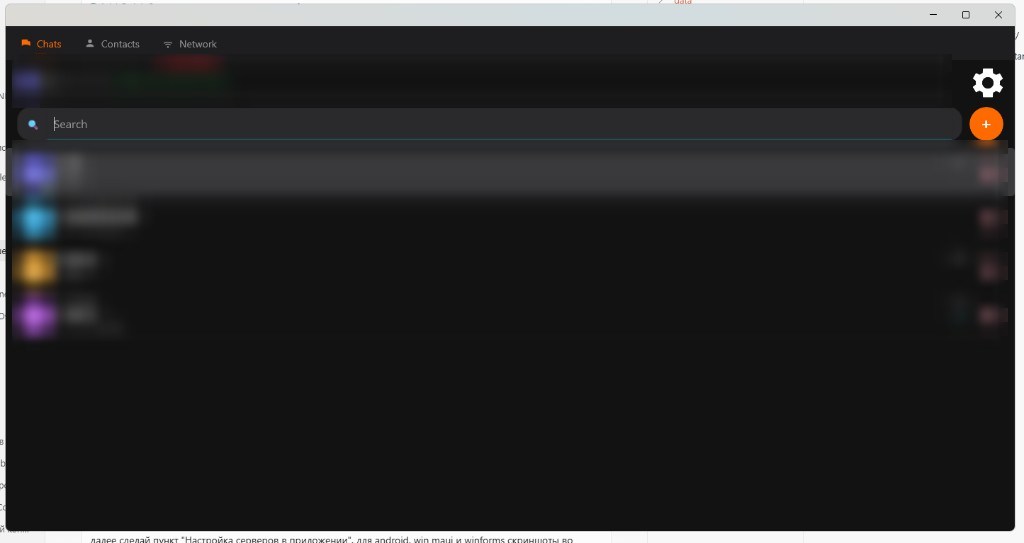
MAUI client: Network in the top navigation.
Network
MAUI client: orange Servers button on the Network screen.
Servers
MAUI client: Base URL field and Add server button.
Base URL → Add server

Win MAUI

  1. Open Network.
  2. Tap Servers.
  3. Enter the Base URL (for example https://host:7196).
  4. Tap Add server. Import server is optional.
MAUI client: Network in the top navigation.
Network
MAUI client: orange Servers button on the Network screen.
Servers
MAUI client: Base URL field and Add server button.
Base URL → Add server

WinForms — for older PCs and Windows versions (Windows 7 SP1 and later)

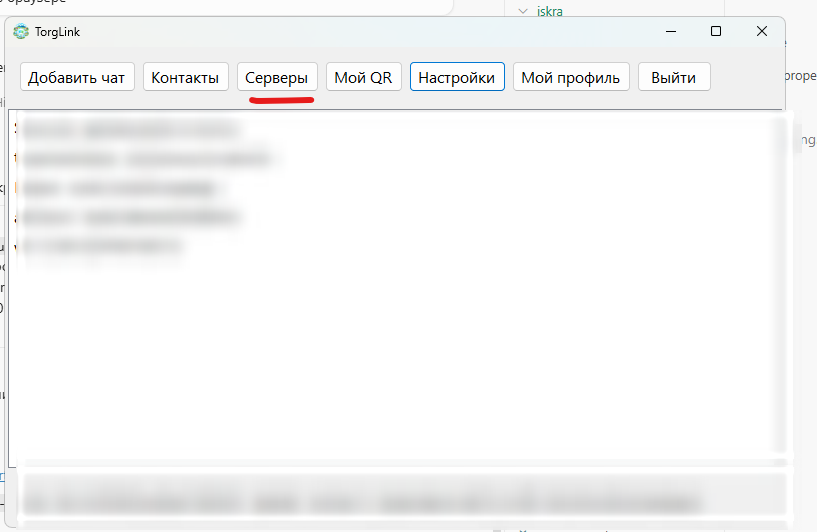
  1. Open the Servers tab (Серверы).
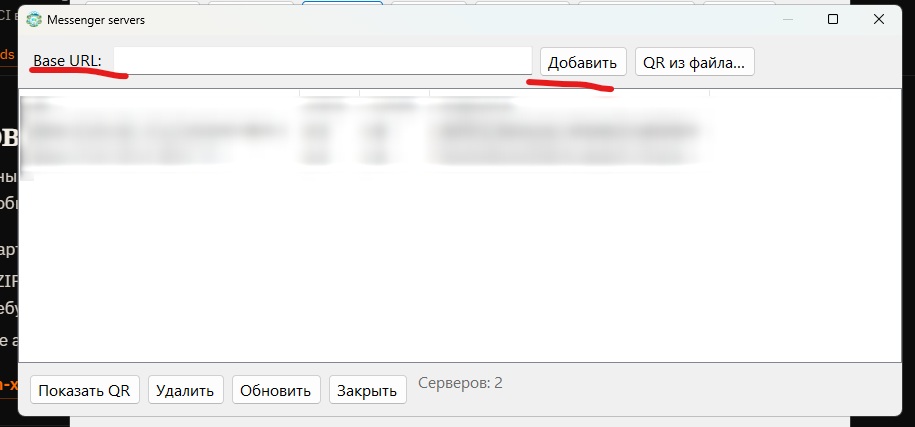
  2. Enter the Base URL.
  3. Click Add (Добавить). You can also import a QR from a file (QR из файла).
WinForms: Servers tab (Серверы) in the main window.
Серверы
WinForms: Messenger servers dialog with Base URL and Add (Добавить).
Base URL → Добавить